Photocopier or MFP? How Australian Offices Decide With 4 Simple Numbers
A photocopier is a device that uses light, an electrostatic drum and toner to reproduce paper documents without ink cartridges or a computer connection. Most businesses today don’t need a standalone copier at all — a networked multifunction printer (MFP) that copies, prints and scans covers the job better. Only high-volume production environments genuinely need a dedicated floor-standing machine.
TL;DR:
- Most modern office photocopiers are multifunction printers with digital workflows, requiring regular firmware updates and security controls to prevent data risks.
- Choosing the right device depends on monthly page volume, color versus mono needs, and whether finishing features are necessary, ranging from desktop A4s to high-volume production machines.
- Leasing is often more flexible for growing businesses, but buyers should confirm exact per-page charges and end-of-term fees before signing a contract.
- Routine maintenance like daily glass cleaning, weekly paper path clearing, and monthly firmware checks extends device life and reduces downtime.
- End-of-life disposal involves secure data erasure, recycling toner and drums, and using certified e-waste disposal services or professional collection options.
Table of Contents
- How a photocopier works, and why it’s really a small computer
- Choosing between desktop, A3 MFP, floor-standing and production machines
- Lease or buy: working out the real cost of a photocopier
- Keeping a photocopier running: maintenance that actually prevents downtime
- What happens to a photocopier at the end of its life
- A managed alternative: professional collection for old office equipment
- Where to check the details yourself
- Sources
- FAQ
How a photocopier works, and why it’s really a small computer
Xerography is the process behind every copier, dry or otherwise. A bright light scans the original document, and the pattern of light and dark charges an electrostatic drum accordingly. Toner, a fine powder rather than liquid ink, clings to the charged areas of the drum and transfers onto paper. A heated fuser then bonds the toner permanently to the page. It’s a mechanical process refined over seven decades, and it’s why photocopies handle high volumes more cheaply per page than inkjet printing.
What’s changed is everything around that core mechanism. A photocopier built today rarely stands alone. It houses an internal scanner that converts the physical original into a digital image first, then routes that image to the print engine, a network folder, an email address, or cloud storage. That single shift, from “copy the light pattern directly” to “digitise it, then act on it,” is what allowed copying, printing, scanning and faxing to merge into one box.
This matters for buyers because a modern MFP isn’t just a mechanical device. It runs firmware, holds a processor and memory, and often stores a hard drive’s worth of scanned documents. That means:
- Security patches and firmware updates need the same attention as any networked computer on your premises
- Access controls should govern who can print, scan to email, or pull job histories
- A machine sitting on your network for eight years without a single update is a genuine data risk, not just an old machine
Nearly every device marketed as an “office copier” now falls into the multifunction printer category, so buyers should shop by capability and monthly volume rather than the label on the brochure.
Choosing between desktop, A3 MFP, floor-standing and production machines
Matching device class to actual workload avoids the two most common buying mistakes: underbuying for a growing team, or overpaying for capacity nobody uses.
- Desktop A4 devices suit teams of one to three people printing invoices, letters and the occasional contract. Low tray capacity, no finishing options, and a purchase price that rarely justifies a lease.
- A3 MFPs fit small to mid-sized offices needing occasional larger formats: spreadsheets, drawings, or marketing proofs alongside standard A4 correspondence. This is the sweet spot for most professional services businesses.
- Floor-standing copiers handle shared offices with genuine daily volume, multiple departments, and a need for finishing features like stapling, hole-punching and booklet-making. If your reception regularly assembles bound reports or client packs by hand, this is the upgrade that pays for itself.
- Production presses belong to print shops and large corporates running tens of thousands of pages a month, often in full colour with specialised paper stocks.
The practical difference between a basic printer, an MFP and a floor-standing copier comes down to capability and throughput. MFPs add scanning and digital workflows, while floor-standing copiers offer higher duty cycles and finishing options that desktop units simply cannot match.
Before you shortlist anything, tally four numbers: average monthly page count, the colour-to-mono ratio, whether you need finishing (stapling, booklets, hole-punching), and how staff actually scan documents now, whether that’s to email, a shared drive or a document management system.
Lease or buy: working out the real cost of a photocopier
Cash flow drives this decision more than anything else. Leasing preserves capital and usually bundles servicing, parts and consumables into one predictable monthly fee, which suits businesses that would rather budget a fixed line item than manage a maintenance contract separately. Buying outright can work out cheaper over several years for businesses with stable, well-understood print volumes, but it shifts the servicing and consumables burden onto you directly, and Toshiba’s guidance on leasing versus buying is worth reading before you sign anything.
Growth expectations matter just as much as cash flow. A business planning to double headcount in eighteen months is better served by a lease with an upgrade path than a purchase locked to today’s volume.
Indicative pricing, treated as a rough guide rather than a quote, generally starts from low thousands to buy outright for entry-level A4 devices, while mid-range A3 MFPs often lease for moderate monthly fees depending on volume and finishing, and high-volume floor-standing machines typically cost more monthly once service and click charges are included. Actual figures vary by vendor, contract length and page volume, so treat any number a supplier quotes you as the real figure and this as context only.
Before signing a service agreement, get clear answers on:
- Guaranteed response times for breakdowns, ideally same-day or next-business-day
- Who owns the consumables (toner, drums, fuser units) and whether they’re bundled into the click charge
- The actual per-page click charge for mono and colour, and whether there’s a monthly minimum
- What happens at the end of the term: return, upgrade, or buyout at a set price
Pro Tip: Ask for the click charge in writing before you ask about the monthly lease figure. Vendors sometimes discount the base lease and recover margin through inflated per-page rates, which only shows up once you’ve signed.
Keeping a photocopier running: maintenance that actually prevents downtime
A machine that jams weekly isn’t unlucky, it’s usually under-maintained. Basic care extends the working life of any copier or MFP well beyond what most offices expect.
Daily, wipe the glass platen with a lint-free cloth. Dust and toner residue on the scanning glass show up as streaks and shadows on every copy, and it’s the single most common (and most avoidable) quality complaint. Weekly, clear the paper path of dust and check trays for curled or damp stock, which causes most jams. Monthly, check toner and drum levels against expected usage, and confirm firmware is current, since manufacturers routinely push updates addressing both bugs and security holes.
That maintenance routine matters because manufacturers commonly recommend exactly this rhythm to extend device life and reliability. Skipping it doesn’t save time, it just moves the cost from prevention to repair.
Repair-versus-replace decisions get easier once you track two things: age against expected service life, and how often the same fault recurs. A machine past five years old that’s had three call-outs for the same fuser issue in six months is telling you something a technician’s invoice won’t. Parts availability also narrows as models age, and a discontinued fuser assembly can turn a routine repair into a multi-week wait.
Security deserves the same discipline as the mechanical checklist. Networked MFPs commonly store job histories on internal hard drives, so secure erase settings, access controls and firmware patching all belong on your maintenance schedule, not as a one-off IT task when the machine arrives.
- Wipe the platen glass daily; a five-second habit that prevents the most common copy-quality complaint
- Clear paper paths weekly and store paper stock away from humidity
- Confirm firmware updates monthly, and lock down who can access scan-to-email settings
- Track fault frequency against machine age to decide repair versus replacement early, not after a breakdown
What happens to a photocopier at the end of its life
A retired photocopier doesn’t belong in general waste, and in most cases it shouldn’t go straight to a scrap bin either. Photocopiers and multifunction printers are classed as e-waste in Australia, and the National Television and Computer Recycling Scheme offers free drop-off routes for eligible devices. The scheme was built primarily around consumer electronics, though, so larger commercial units and bulk office disposals often fall outside its consumer-focused eligibility and need an authorised commercial collection instead.
Before any machine leaves your premises, run through a short pre-disposal routine:
- Wipe or securely erase any internal storage; many MFPs hold months of scanned documents on an internal drive
- Remove toner cartridges and drums for separate recycling where the supplier accepts them back
- Record the serial number and confirm warranty or lease-end status before it’s collected
For end-of-life corporate machines, keeping a documented secure-erase record and chain-of-custody paperwork with whoever collects the unit reduces both legal exposure and data-breach risk. Businesses generally have three practical routes from there: a manufacturer take-back program if one’s offered, an authorised e-waste recycler, or a business e-waste collection service that handles the logistics and paperwork directly.
A managed alternative: professional collection for old office equipment
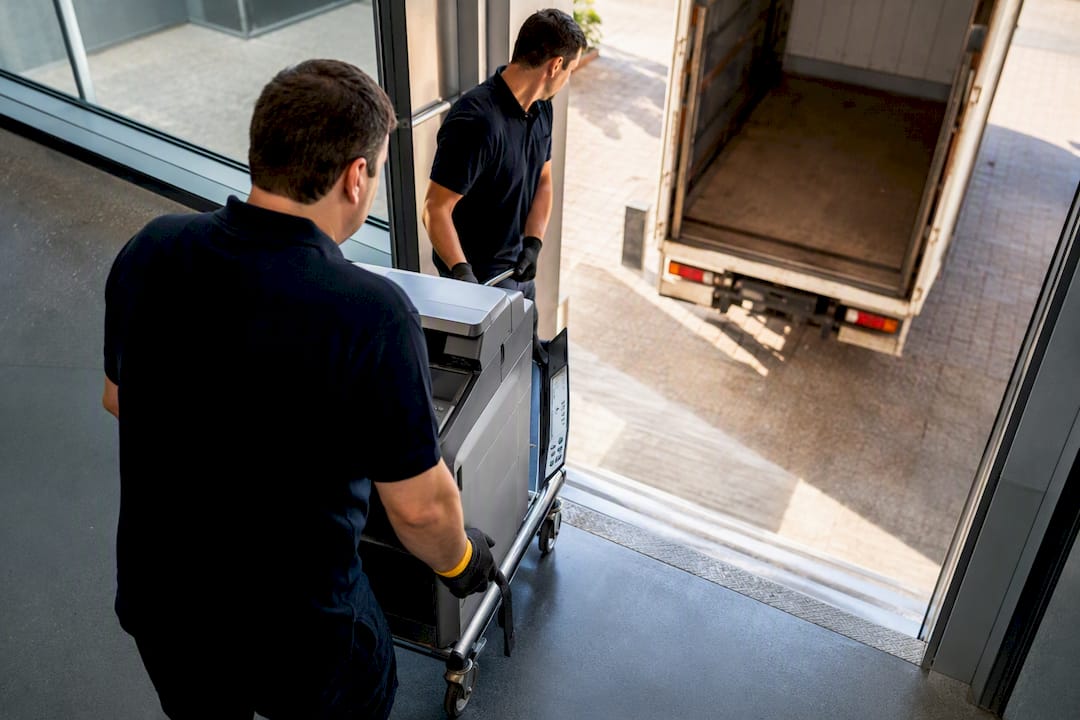
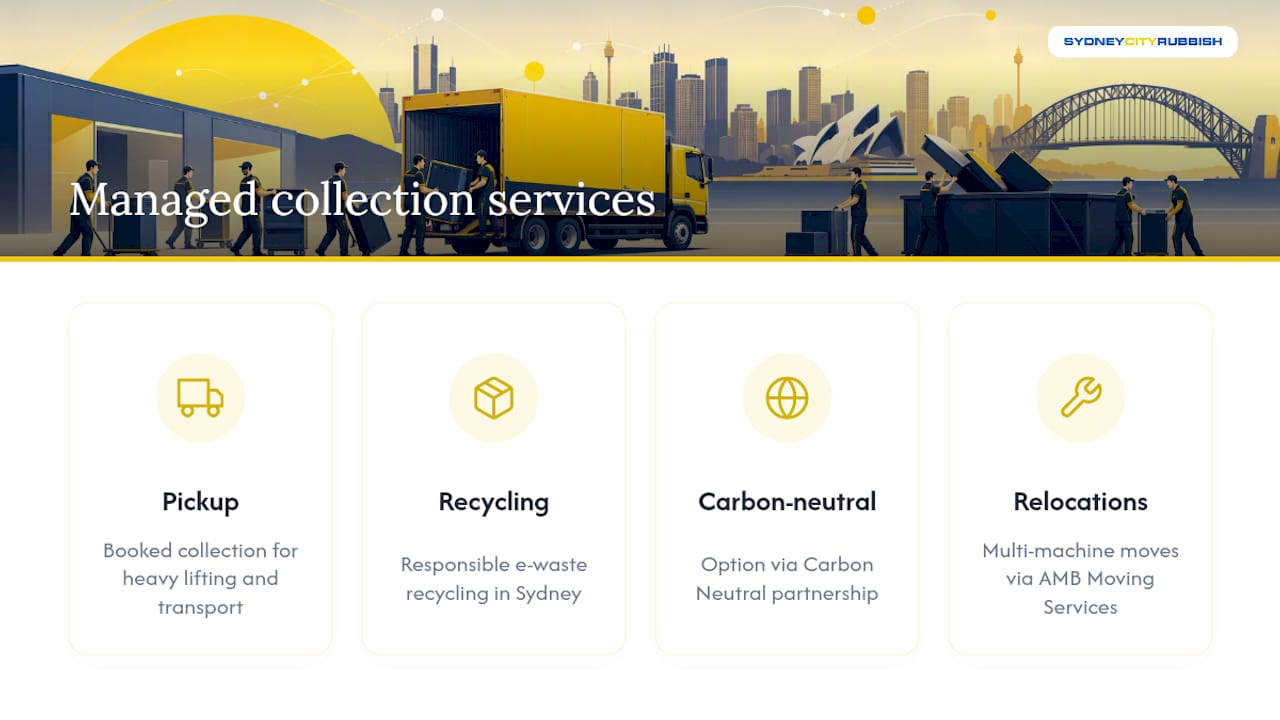
Chasing down manufacturer take-back schemes or sourcing an authorised recycler for a single floor-standing copier eats time most office managers don’t have. There are services that offer a more direct route for businesses retiring old copiers and MFPs: a booked collection that handles the heavy lifting, transport and compliant disposal in one visit, rather than leaving you to coordinate multiple parties.
The service covers safe removal of bulky office equipment, responsible e-waste recycling in Sydney for the components that need it, and a carbon-neutral disposal option through a partnership with Carbon Neutral for businesses that want their old machines handled sustainably. For larger relocations involving multiple machines, coordinating with an equipment-handling specialist like AMB Moving Services can also smooth the logistics if the copier is moving rather than retiring.
If you’ve got an old floor-standing copier or a stack of retired desktop units taking up storage space, get a quote for office equipment removal and book a pickup that fits around your business hours, not the other way around.
Where to check the details yourself
For the official word on e-waste eligibility, read the DCCEEW recycling drop-off guidance directly. For technical background on how copiers and MFPs differ, Wikipedia’s multifunction printer entry and Toshiba’s lease-versus-buy guide are solid starting points before you sign a contract.
Sources
- How to recycle e-waste – DCCEEW
- office printer lease vs buy | Toshiba
- Copier vs. Printer vs. MFP: Difference & What to Buy | AOP Inc
FAQ
What is a photocopier?
A photocopier is a device that uses xerography, light, an electrostatic drum, toner and heat, to reproduce paper documents; most modern versions are multifunction printers that also scan and print.
Can you buy just a photocopier?
Standalone copiers with no printing or scanning capability still exist but are increasingly rare, since nearly every device sold today is an MFP that bundles copying with printing, scanning and network connectivity.
Is a photocopier different from a printer?
Yes. A printer only outputs digital files, while a photocopier reproduces an existing physical document, and most office machines today combine both functions plus scanning in one MFP.
How often should a photocopier be serviced?
Daily glass cleaning, weekly paper-path checks and monthly firmware updates cover routine care, while most lease and service agreements include scheduled professional servicing on top of that.
Are old photocopiers classed as e-waste in Australia?
Yes, photocopiers and MFPs are treated as e-waste, and while the NTCRS offers free drop-off for eligible consumer devices, larger commercial units typically need an authorised business e-waste collection.